The Protected Words feature allows you to add words and phrases you would like to prevent WordAi from changing when it's rewriting the content. Additionally, you can use the Protected Words feature to prevent quotes, titles, and URLs from changing when WordAi is rewriting.
You can use the Protected Words feature when rewriting articles using the interface, Bulk Rewriter, and the API.
Protecting Words allows you to:
- Prevent WordAi from changing any specific words or phrases (think keywords, products, company names, etc.)
- Prevent WordAi from changing quotes
- Prevent WordAi from changing URLs
- Prevent WordAi from changing titles and sub-titles
Where is the Protected Words feature located?
The Protected Words feature is accessible from two places within your WordAi account.
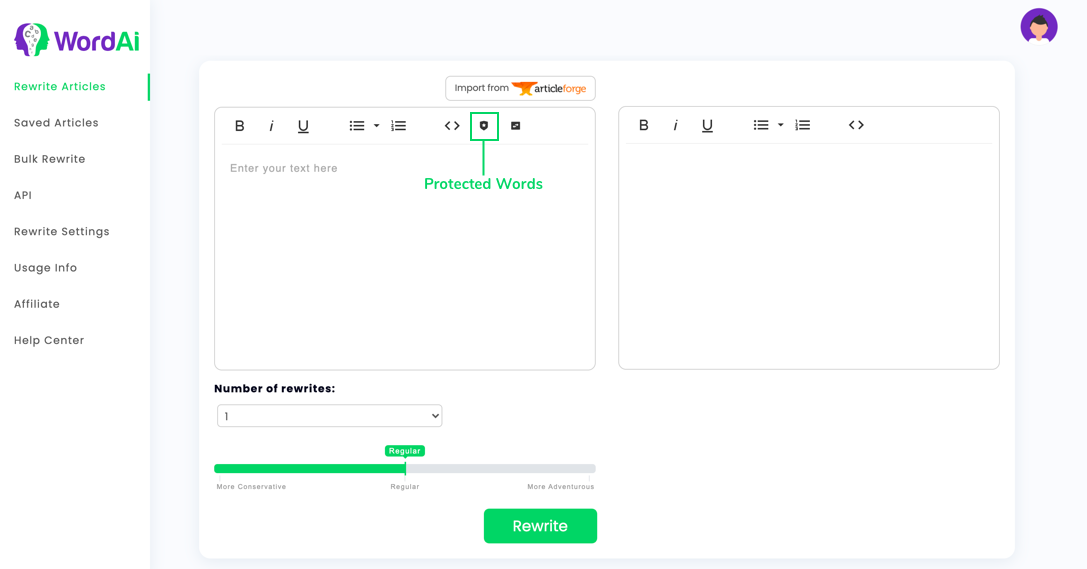
1. You can manage your Protected Words settings from the toolbar in the editor on the Rewrite Articles page. Here you can update Protected Words settings to apply only to your next article rewrite or for all future articles.
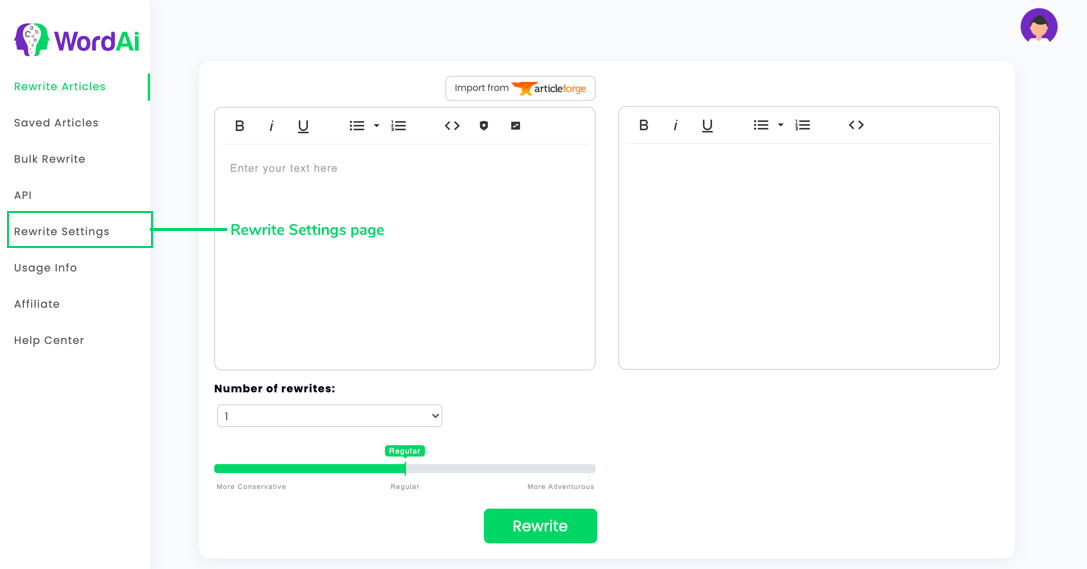
2. You can also manage your Protected Words settings on the Rewrite Settings page. The Protected Words settings updated here will apply to all the articles you rewrite using your WordAi Interface, Bulk Rewriter, and API.
How do I use Protected Words for an individual article?
To use Protected Words for just an individual article rewrite, first, click on the Protected Words icon in the editor toolbar on the Rewrite Articles page. This will open up a modal that looks like this:
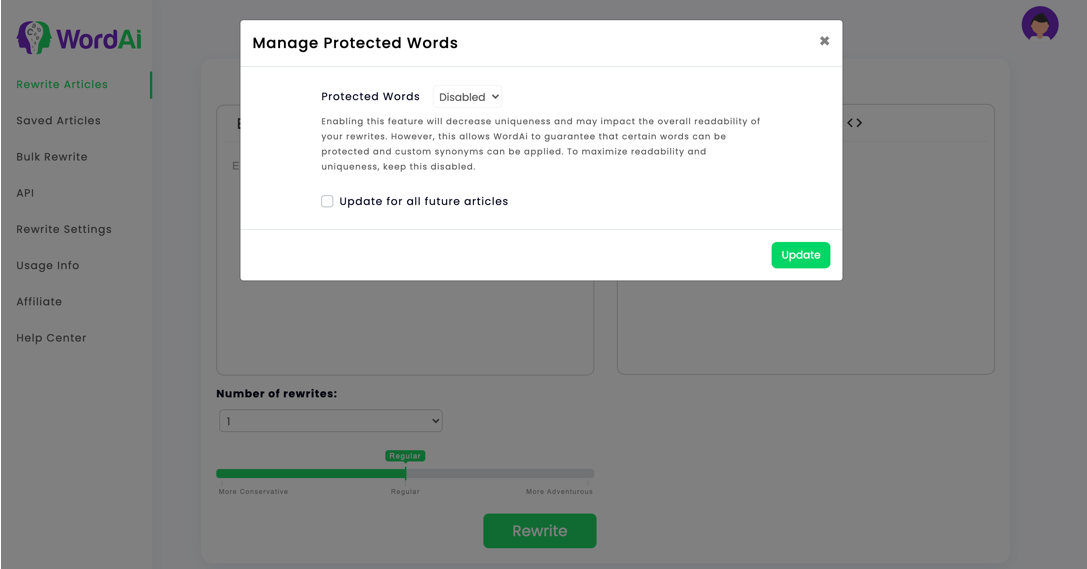
Protected Words are disabled by default, so first, enable the Protected Words settings.
NOTE: Enabling the Protected Words feature will decrease uniqueness and may impact the overall readability of your rewrites. However, this allows WordAi to guarantee that certain words can be protected. To maximize readability and uniqueness, keep this setting disabled.
Once you've enabled the Protected Words, add the words or phrases you'd like WordAi to prevent from rewriting. While adding words, please make sure that each word or phrase you'd like to protect is on an individual row. Note: all protected words/phrases are case-sensitive.
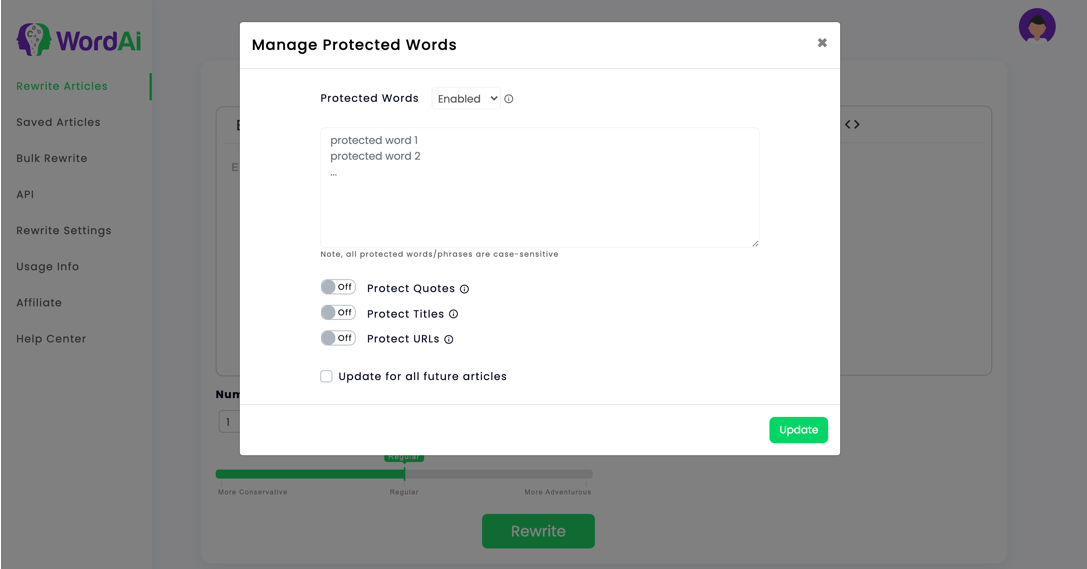
Along with protecting words and phrases, the Protected Words feature can also preserve other elements of content like quotes, titles, and URLs. You can enable these settings by turning ON the Protect Quotes, Protect Titles, Protect URLs toggles.
- Protect Quotes setting: When this setting is ON, WordAi will not rewrite the text within quotation marks.
- Protect Titles setting: When this setting is ON, sentences, headers, and subheaders in the title case will not be rewritten.
- Protect URLs setting: When this setting is ON, valid URLs will be protected. This does not include anchor text. If you would like to preserve anchor text, add it to your protected words list.
NOTE: Leave the "Update for all future articles" option unchecked, if you'd like to apply the current Protected Words settings to only the next article rewrite!
Click the Update button to apply your Protected Words settings! And that's all! Now WordAi will avoid rewriting your given words or phrases.
How do I use Protected Words for all future articles?
To use Protected Words for all future articles, visit the Rewrite Settings
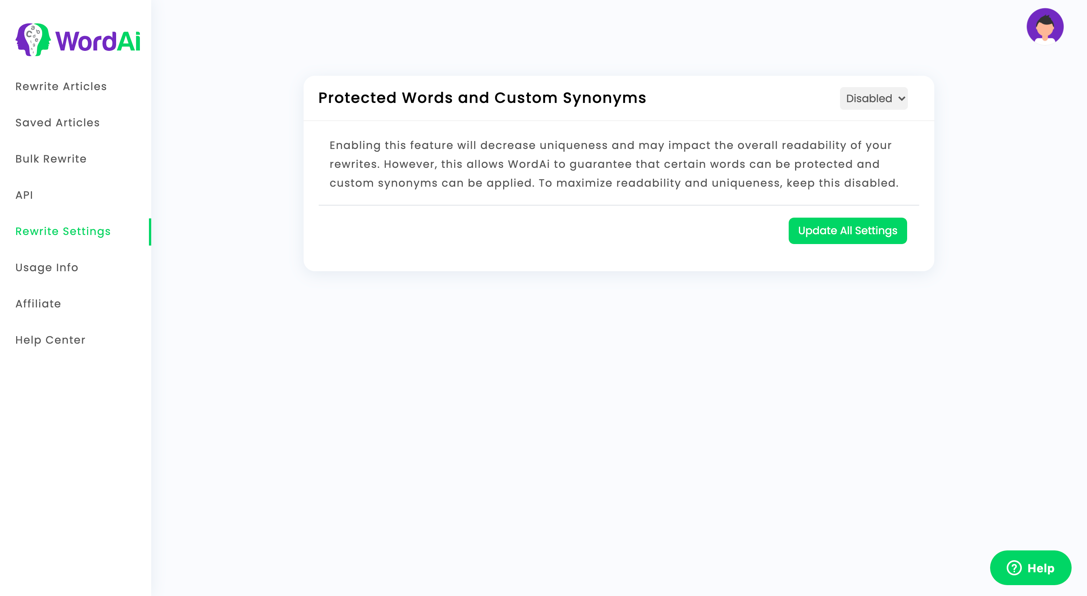
Protected Words are disabled by default, so first, enable the Protected Words settings.
NOTE: Enabling the Protected Words feature will decrease uniqueness and may impact the overall readability of your rewrites. However, this allows WordAi to guarantee that certain words can be protected. To maximize readability and uniqueness, keep this setting disabled.
Once you've enabled the Protected Words, add the words or phrases you'd like WordAi to prevent from being rewritten by WordAi. While adding words, please make sure that each word or phrase you'd like to protect is on an individual row. Note: all protected words/phrases are case-sensitive.
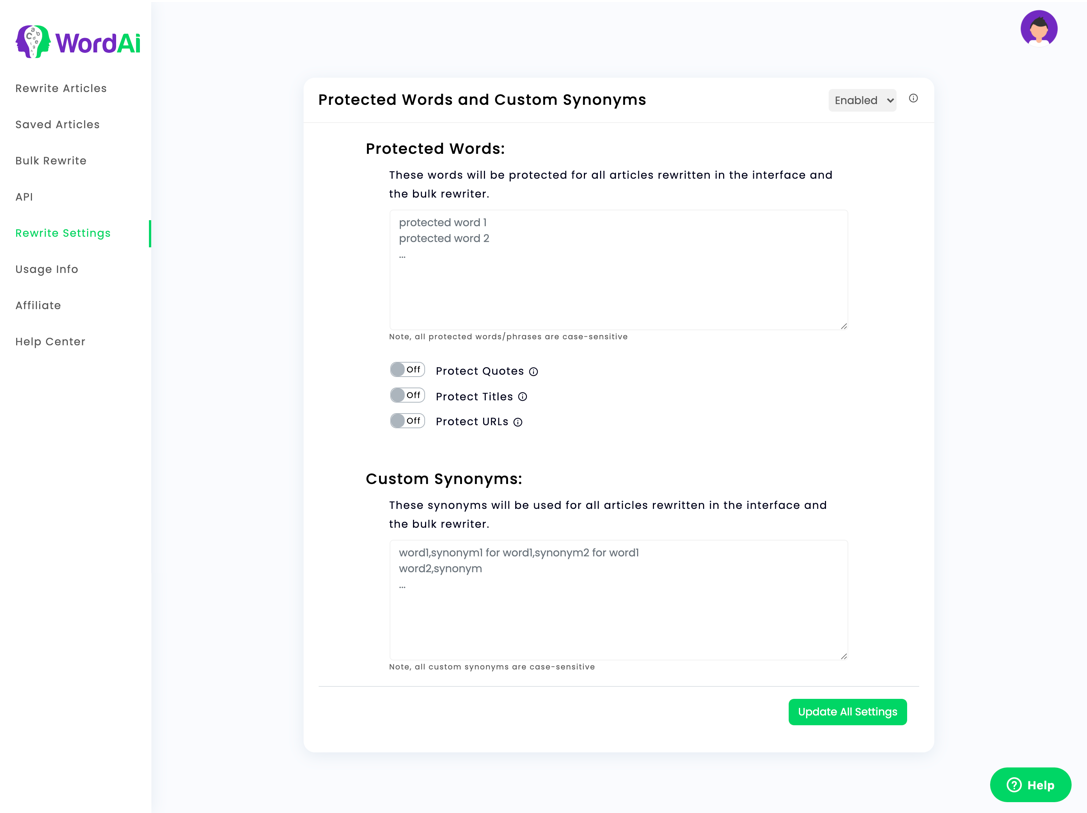
Along with protecting words and phrases, the Protected Words feature can also preserve other elements of content like quotes, titles, and URLs. You can enable these settings by turning ON the Protect Quotes, Protect Titles, Protect URLs toggles.
- Protect Quotes setting: When this setting is ON, WordAi will not rewrite the text within quotation marks.
- Protect Titles setting: When this setting is ON, sentences, headers, and subheaders in the title case will not be rewritten.
- Protect URLs setting: When this setting is ON, valid URLs will be protected. This does not include anchor text. If you would like to preserve anchor text, add it to your protected words list.
Click the "Update All Settings" button to apply your Protected Words settings! And that's all! Now WordAi will avoid rewriting your given words or phrases in all future articles.