WordAi’s Bulk Rewriter allows you to enter multiple pieces of content at a time, so you can do other things while your rewrites are being created automatically. To get started, click “Bulk Rewrite” in the left navigation bar. From here, you can upload your .csv or .zip file that contains the content you’d like rewritten in bulk.
File Guidelines (if uploading a .csv file)
Before uploading your bulk .csv file, make sure it fits these guidelines:
- Each article name is listed in the first column, and the text you’d like rewritten is entered in the second column of your bulk file (each row is one article).
- There are no titles or headers to any of the columns in your bulk file.
- The file size is under 5MB.
An example of an accepted .csv bulk file format:
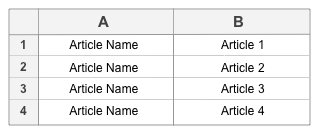
Article Name = A unique identifier for your article.
Article (1,2,3,4) = Text associated with ‘Article Name’ you’d like WordAi to rewrite
File Guidelines (if uploading a .zip file)
Before uploading your bulk .zip file, make sure it fits these guidelines:
- All articles are in .txt format.
- All .txt files have been compressed into one .zip file.
- The file size is under 5MB.
Note: if you receive an error when uploading, this is likely caused when a .zip file is a folder of files rather than just .txt files alone.
Once you have successfully uploaded your .csv or .zip file, select how many rewrites you desire (between 1-4), then use the sliding scale to designate which mode you’d like WordAi to rewrite your content in (More Conservative, Regular, More Adventurous).
Click the “Rewrite” button and voila! WordAi will queue and process all your rewrites. Once WordAi has rewritten all your articles, they will be saved in the Saved Bulk Jobs section of the Bulk Rewrite page.